ShixxNOTE 7.net Program Features
- ShixxNOTE is a powerful and reliable utility designed to help you capture, manage, and share notes and ideas instantly, no matter which application you are currently using.
- Create notes with one click and keep them always visible on your desktop, ensuring important information is never lost or forgotten.
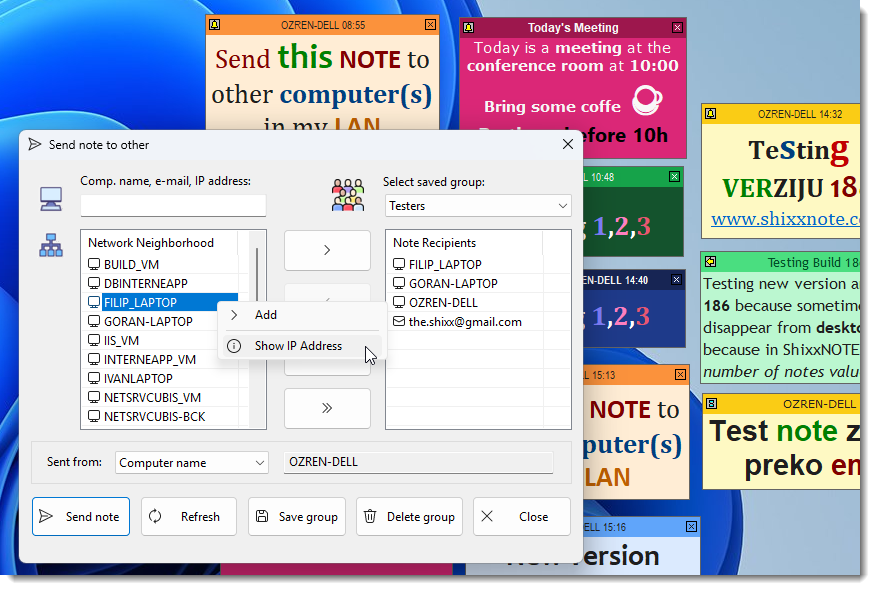
- Send notes directly to the desktops of other computers running ShixxNOTE over a local network →, the Internet, or via e-mail. ShixxNOTE automatically detects available computers on the network and displays them in a simple recipient list. Select one or multiple computers and send a note instantly with a single click.
- Works as an offline LAN messenger → for secure internal communication, allowing teams to exchange messages instantly across a local network without internet, cloud services, or external servers.
- Organize recipients into custom groups and save them under a group name. Groups appear directly in the "Send note to" menu, allowing you to broadcast a note to multiple recipients effortlessly.
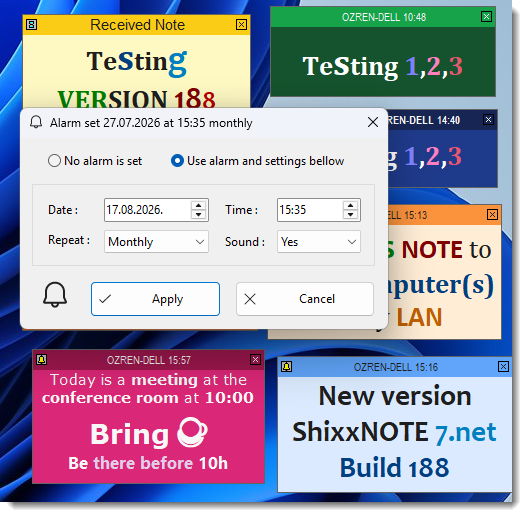
- Use built-in alarms and reminders to schedule notes to appear at specific times. Notes can be set to repeat periodically or expire automatically after a day, week, month, or on a custom date. Ideal for reminders, deadlines, and time-sensitive tasks.
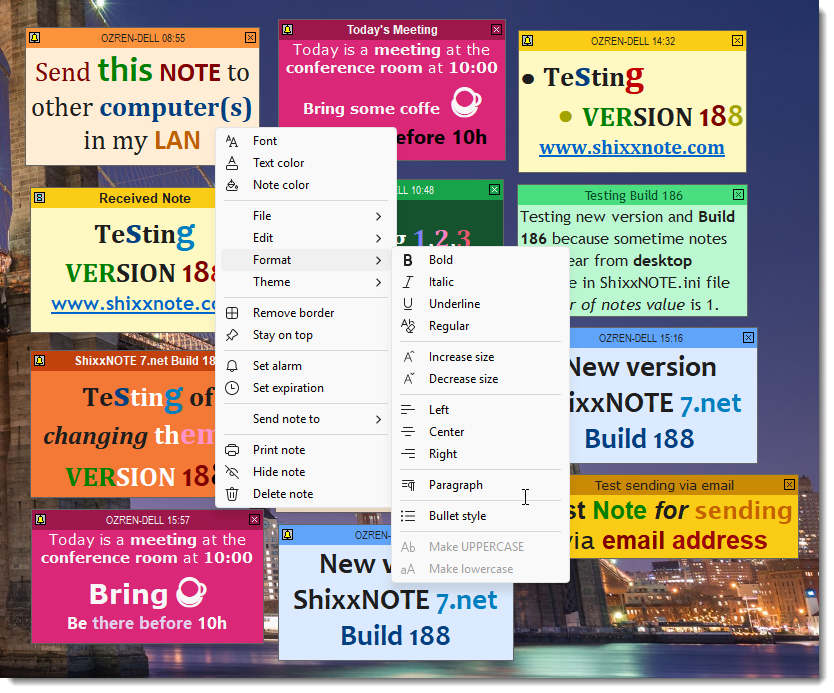
- Fully customize the appearance of your notes. Change colors, fonts, and paragraph settings to suit your workflow. Save custom note themes and organize them for quick reuse.
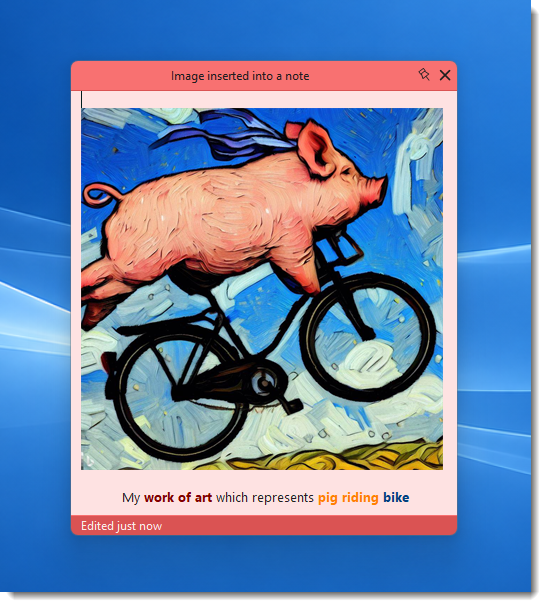
- Insert a picture straight into a note. Pick a BMP, JPG or PNG file from the note's own menu and it is saved and reopened together with the note's text.
- Enjoy automatic saving. Notes are saved instantly whenever you switch applications or exit Windows, so your data is always safe without manual intervention.
- Protect your information with password protected notes → designed to keep sensitive data safe from unauthorized access.
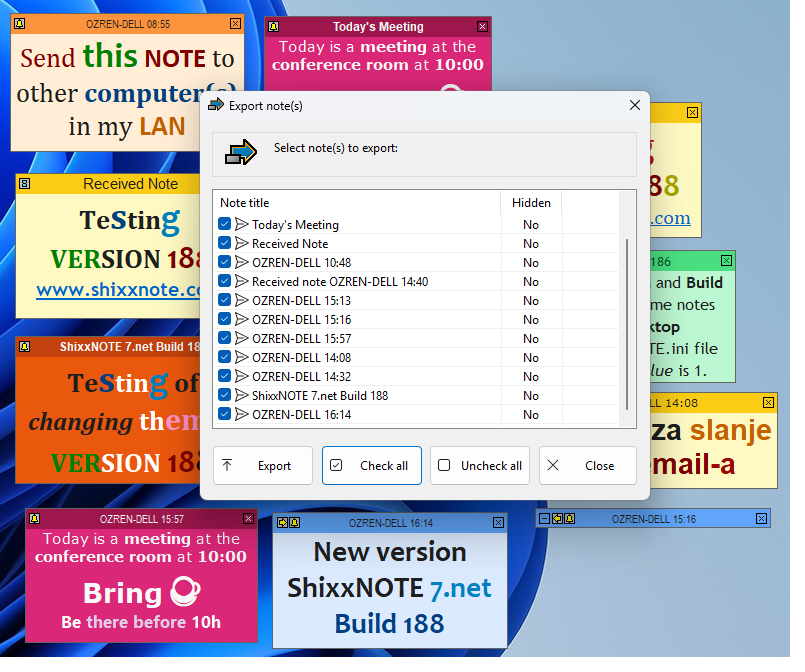
- Easily export and import notes to files for backup, transfer, or archival purposes.
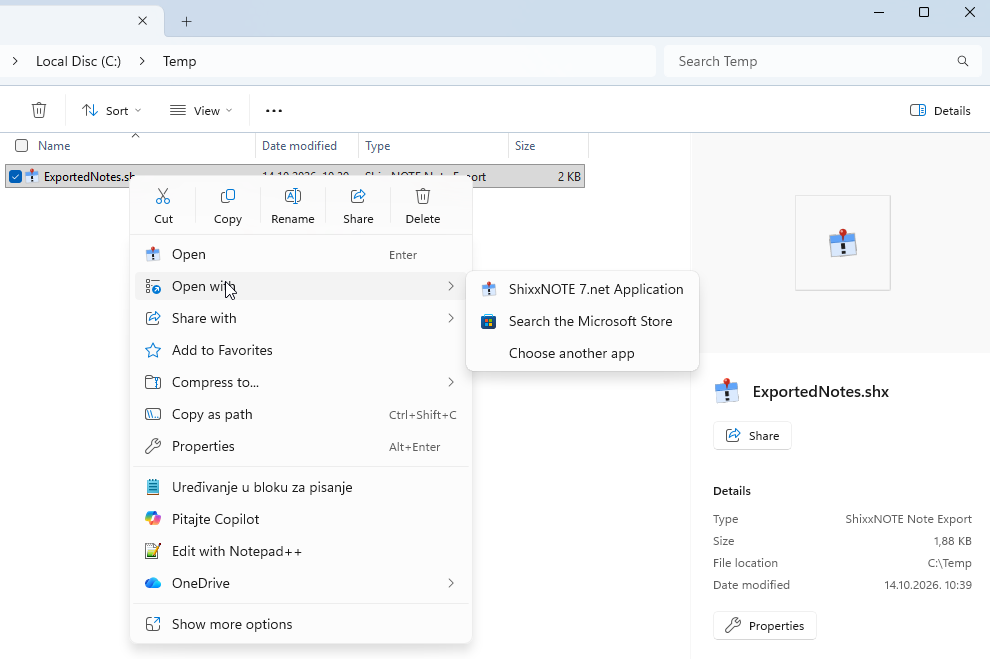
- Exported notes are kept in a .shx note file. Double-click one in Windows Explorer and ShixxNOTE offers to put the notes it holds back on your desktop, exactly as they were.
- Send notes via e-mail using any MAPI-compatible mail client such as Outlook. The note image is included as an attachment. If the recipient also uses ShixxNOTE, the application automatically reads the e-mail data and recreates the note on the recipient's desktop exactly as it was sent.
- ShixxNOTE is an ideal tool for instant communication within an office environment →, remote teams, or even a home LAN.
- Keep sensitive information private with note encryption →. Notes sent over the local network or by e-mail can be encrypted, so their contents can be read only on another computer running ShixxNOTE.
- Work in your own language. The interface is available in thirteen languages, including English, German, Italian, French, Spanish, Portuguese, Dutch, Polish, Japanese, Korean, Turkish, Chinese and Croatian, switched instantly from the settings without restarting.
- Never lose a note. ShixxNOTE keeps an automatic daily backup of your notes, and a "Find in notes" search in the tray menu looks through the text of every note at once to take you straight to the one you need.
- Choose the sounds ShixxNOTE plays for a received note and for a note alarm, using the built-in sounds or your own .wav and .mp3 files.
- Every note now carries a title bar at the top and a footer at the bottom saying when it was last changed, with the date in any of nine formats.
- Notes were given a new frame: rounded corners and a soft shadow on Windows 11, new Close and roll-down buttons, a pin that keeps a note above other windows, a Set corner choice for each note and a Note spacing setting for more room around the text.
- The Settings window was rebuilt in the style of Windows 11, with its pages listed down the left side and two new pages, Email and Backup.
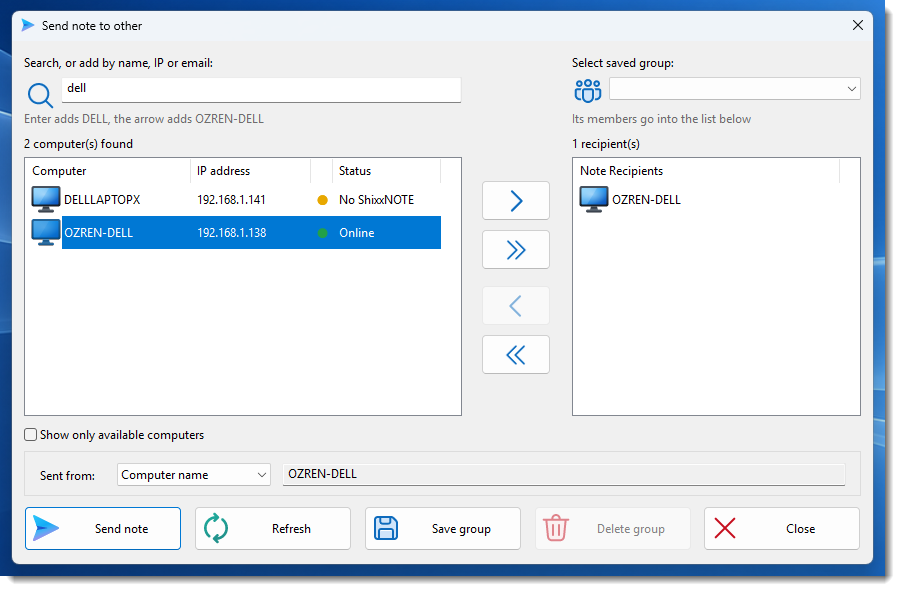
- Send note to other was modernised throughout: it searches the computer list as you type, shows each computer's IP address and a Status dot that says whether ShixxNOTE is running there, and lists only the computers that have it.
- Send a note by e-mail through Outlook or straight through Gmail and your own mail servers, all set up on the new Email page.
- A received note announces itself beside the tray icon and names the sender, and while you write a reply the other computer shows that you are typing.
- Designed with stability, performance, and configurability in mind, ShixxNOTE keeps you organized, informed, and productive with a rich set of practical features that simply work. Try every one of them free for 30 days →, then buy a single licence → that covers every computer on your network.
📝 Desktop Notes and Productivity Software for Windows 📷
ShixxNOTE is a powerful desktop notes and sticky notes software for Windows designed to help you capture ideas, manage tasks, and communicate instantly, no matter which application you are using.
Create notes with a single click and keep them visible on your desktop at all times. ShixxNOTE ensures your important thoughts, reminders, and ideas are always accessible and never lost.
🏷️ A Note Title Bar and a Footer That Says When It Changed 📷
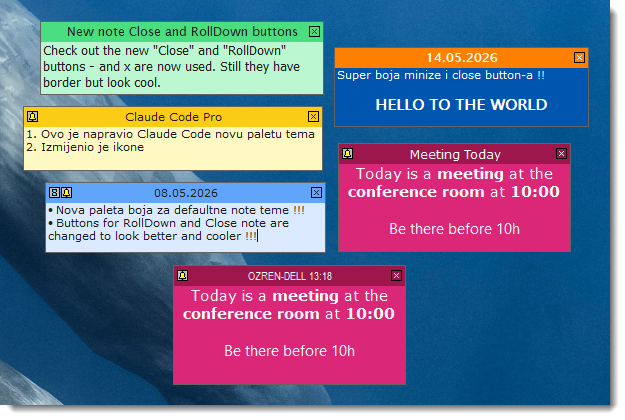
Every note has a proper title bar at the top and, new in the latest builds, a bar along its foot. The title bar carries the note's own title or the date and time it was created, in one of nine date formats, the two newest of which write the month by name. Set the title to the left, in the middle or to the right and it stays that way after a restart, and a title too long for the note leaves out the time instead of breaking off mid character.
The footer says when the note was last changed, with the date written in the format you picked in Settings and just now for the first minute, so you can tell at a glance which note you touched today. It follows your typing instead of waiting for the note to be saved, its text stays light and readable on any coloured bar, and it takes its colours from the note's note theme. See the notes and windows in the gallery →, or read what else is new →
📌 Rounded Corners, a Pin, and Room to Breathe 📷
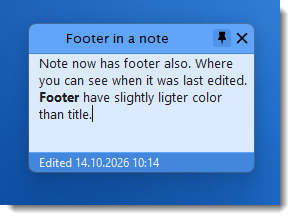
The notes were given a new frame: rounded corners on Windows 11 and a soft shadow underneath, with Close and roll-down buttons that are larger, carry no frame around them and light up as the mouse passes over.
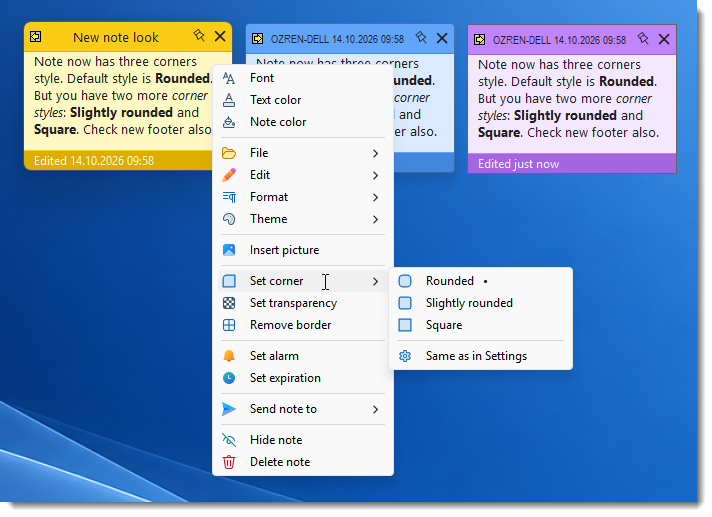
A pin next to the close button keeps a note above other windows, which is why Stay on top has left the note menu. The pin lies over while the note is free and stands upright and filled once the note is pinned, in the colours of that note's theme. Each note can be rounded, slightly rounded or square on its own through Set corner in its menu, and a Note spacing setting, Compact or Comfortable, gives a note a taller title bar and more room around its text. It is all part of making ShixxNOTE the sticky notes application for Windows → that looks at home on a current desktop.
📤 Send Notes Over LAN, Internet, or E-mail 📷
ShixxNOTE allows you to send notes directly to other computers running ShixxNOTE over a local area network (LAN), the Internet, or via e-mail. The application automatically displays available computers in a network recipient list, making LAN messaging simple and fast. Select one or multiple computers and send notes instantly.
Save frequently used recipients as custom groups. Group names appear in the "Send note to" menu, enabling one-click note delivery to entire teams or departments.
📡 Send Note to Other, Rebuilt 📷
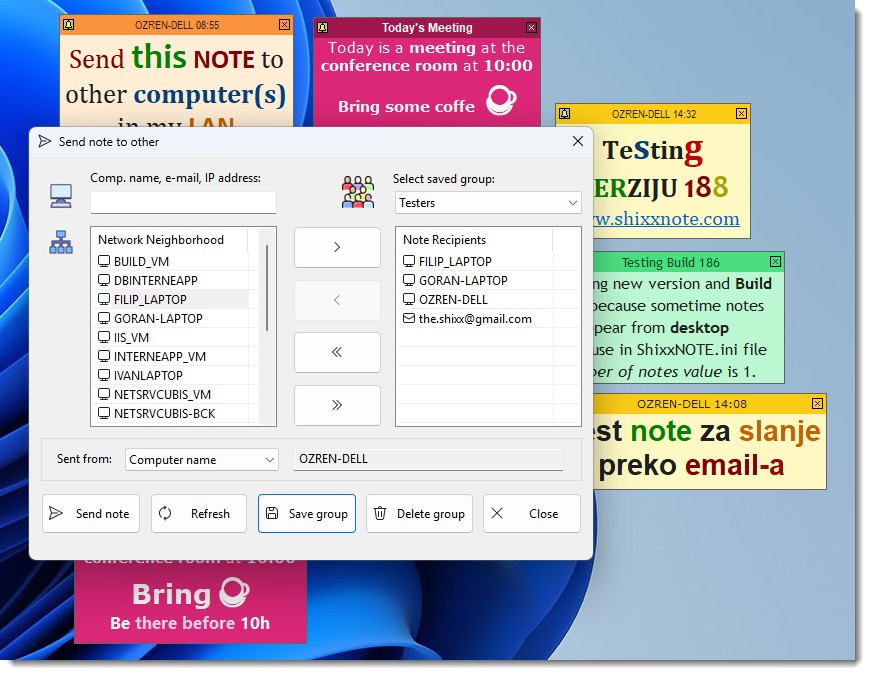
The window that sends a note to somebody else was rebuilt from top to bottom. It is wider and clearer, the box above the computer list searches the list as you type and shows an example of what fits there, each list says how many entries it holds, and saved groups say how many members they have.
A Status column with a coloured dot now tells three things apart: ShixxNOTE is running on that computer, the computer is on but has no ShixxNOTE running, or the computer does not answer at all. There is a column for the IP address, a separate box that lists only the computers running ShixxNOTE, and addresses where nothing answers are left out, so machines switched off long ago stop appearing in your office LAN →. Computers are drawn as a monitor and e-mail addresses as an envelope in the classic Windows style, and the list no longer flickers while it fills. No server and no accounts are needed for any of it, which is what makes ShixxNOTE an offline LAN messenger →.
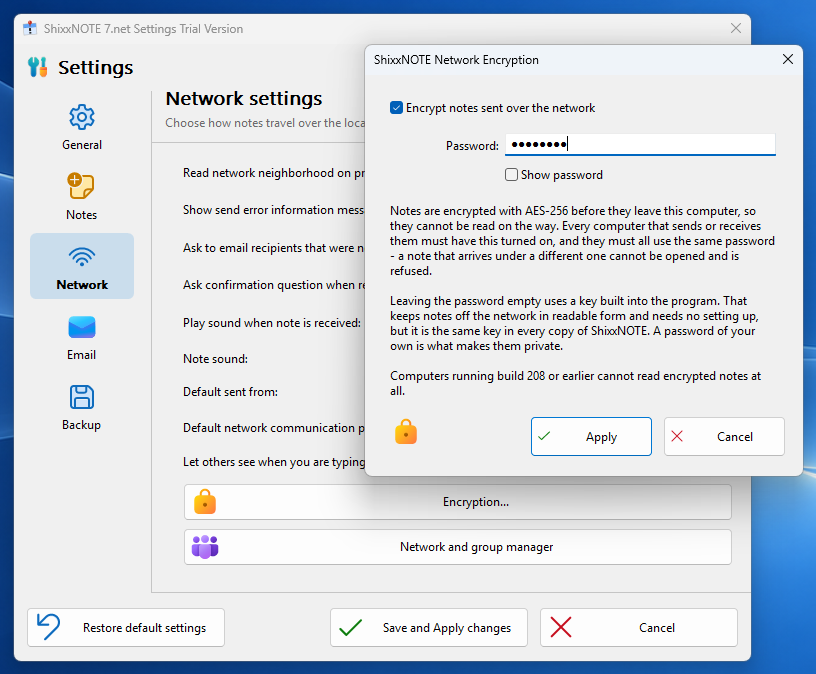
🔒 Encryption for Notes Sent Over the LAN and by E-mail 📷
A note that leaves your computer can be encrypted. Switch it on in the Encryption window in the network settings and give it a password of your own, and from then on every note sent over the local network and every note sent by e-mail travels as AES-256 ciphertext. The words are put back together only on a computer running ShixxNOTE that has the same password, so nothing readable crosses the wire or sits in a mailbox.
Your password is never carried with the note: it is turned into a key with PBKDF2 and SHA-256, every note is encrypted under a fresh one-time value, so two identical notes never look alike on the wire, and a note changed on the way is refused rather than shown. ShixxNOTE says plainly when you switch encryption on that every computer meant to read these notes needs the same password. More on keeping notes to yourself is on the secure notes page →.
🎬 Watch It Work: Send a Note to a Group 📹
This short demonstration shows ShixxNOTE sending a note to a whole team at once. Steve's PC sends a sticky note with a picture to a saved group. Ted's PC and Andy's PC receive it instantly over the LAN (TCP/IP port 2000), while Maria's laptop receives the same note by e-mail and opens it from the menu with "Check for new e-mail notes".
⏰ Note Reminders, Alarms, and Scheduling 📷
Set powerful note reminders and alarms to make notes appear at specific times. Notes can repeat periodically or expire automatically after a day, week, month, or on a custom date. Perfect for task reminders, meetings, deadlines, and time-based notifications.
🎨 Fully Customizable Sticky Notes 📷
Customize every aspect of your notes. Change note colors, fonts, and paragraph settings to match your workflow. Save custom note themes and organize them for quick reuse, making ShixxNOTE a highly flexible Windows sticky notes application.
🖼️ Insert a Picture into a Note 📷
Add a picture straight into a note. The "Insert picture..." command in the note's own menu lets you pick a BMP, JPG or PNG file and place it in the note, right alongside your text. The picture is saved and reopened together with the note, so it is always there. A note with its picture can even be sent over the local network to a colleague running ShixxNOTE.
If a picture is too big for a note, ShixxNOTE now offers to shrink it to fit instead of turning it away, with a clear message about what is happening, so a note always stays light and quick to open.
📂 Import, Export, and E-mail Notes 📷
Easily export or import notes to files for backup, sharing, or archival purposes. Export writes a ShixxNOTE note file with the .shx extension, and one file can hold a single note or every note on your desktop. Send notes via e-mail using any MAPI-compatible mail client such as Outlook. The note image is included as an attachment. If the recipient also uses ShixxNOTE, the application automatically recreates the exact same note on the recipient's desktop.
📎 Open a .shx Note File Straight from Explorer 📷
A note you export becomes a .shx file, and ShixxNOTE registers itself for those files every time it starts, with its own icon and the name ShixxNOTE Note Export. A .shx file in Windows Explorer therefore shows the ShixxNOTE icon and opens with a double click, or through Open with on a machine where something else claims the extension.
Open one and ShixxNOTE reads it, counts the notes inside and asks whether to create them on your desktop. Say yes and they come up exactly as they were exported, with their text, colours, fonts, size and place on the screen. If ShixxNOTE is already running the file is handed to the copy already on screen, so you never end up with two of them, and a file with no notes in it says so instead of doing nothing.
The .shx extension is also used by AutoCAD and by GIS shapefiles, so ShixxNOTE is deliberately not made the default program for it: it adds itself to the Open with list and leaves whatever else uses .shx on your machine alone. It is the simplest way to carry notes from one computer to another, next to sending them over the LAN → and the daily backup → the program keeps.
🏢 Ideal for Office Communication and Team Productivity 📷
ShixxNOTE is an excellent productivity tool for offices, remote teams, and home networks. It enables fast internal communication, quick idea sharing, and effective collaboration without relying on complex messaging platforms.
Designed for stability, performance, and configurability, ShixxNOTE is a reliable Windows productivity application that helps you stay organized, focused, and efficient with a rich set of practical features that simply work.
✉️ Send Notes by E-mail Without Outlook 📷
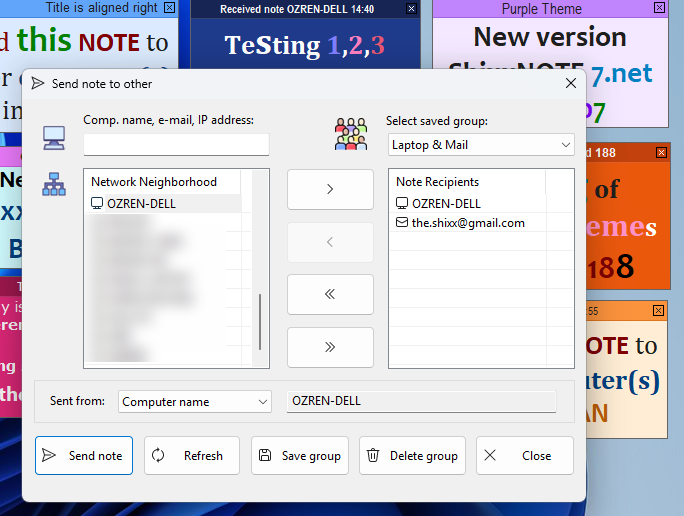
ShixxNOTE can send and receive notes by e-mail using your own account, with no need for classic desktop Outlook. Enter your address, an app password and your mail servers once in the Email account dialog, and the program connects directly over SMTP and IMAP, which works with Gmail and with the new Outlook.
Incoming e-mail notes are read only from the date of the last check onwards, so the same note is never shown to you twice. The classic Outlook route still works and stays the default, so you pick the one that suits you: Outlook on the machine, or your own Gmail or other account straight over SMTP and IMAP.
All of it now lives on an Email page of its own in the new Settings window, which names the account in use and shows the Outlook and Gmail choices side by side. A note sent this way can be encrypted too, and a note that reaches a computer without ShixxNOTE can be followed by an e-mail saying what is waiting for them, which keeps ShixxNOTE useful as an offline LAN messenger → even when a colleague is not set up yet.
🧹 Arrange Your Notes in One Click 📹
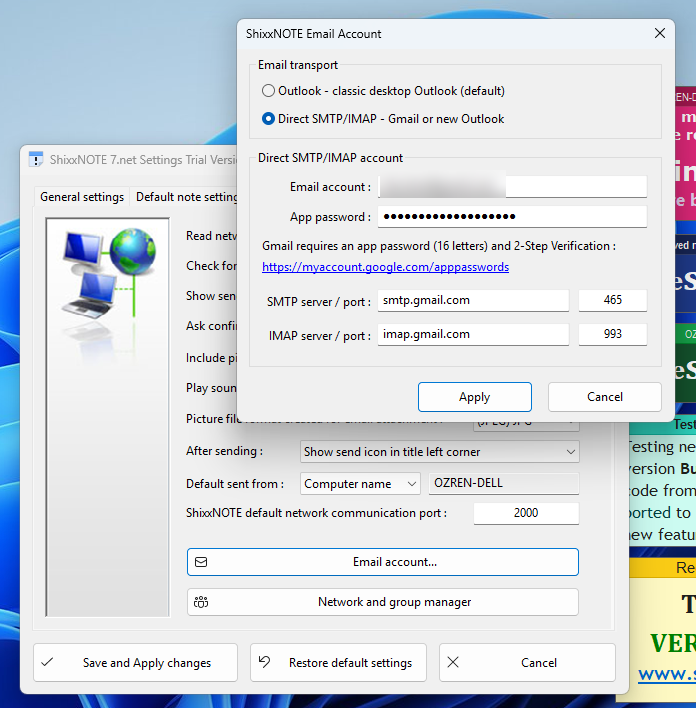
When notes pile up on the desktop, the Arrange notes menu by the tray icon tidies them. Align to top lines them up along the top edge, and Tile with equal gap sets them side by side with the same space between each pair, and Stack on the right puts them in a column under the rightmost note, which stays where it is, and Arrange in a grid lays them out as a table, four notes making two by two and nine making three by three, with the same gap across and down. Undo arrange puts every note back where it was.
Notes keep their size, hidden notes are left alone, and with several monitors each one is arranged on its own. The gap is set in Settings, on the page for a new note.
Watch four scattered notes line up with Tile with equal gap, then go back to where they were with Undo arrange.
🌈 Note Themes and Colors 📷
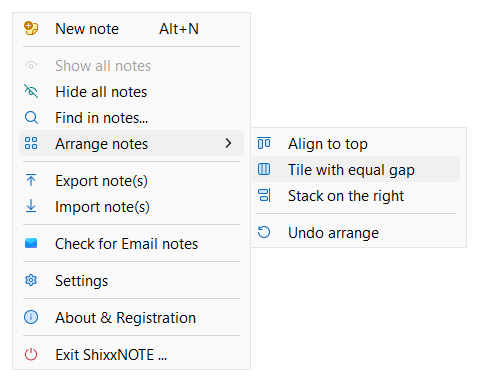
Every note can take one of sixteen supplied themes, reachable straight from the note's own Theme menu. The newest build → added Purple, Red, Candy and Green Mint to the twelve that were already there.
A theme changes the note background, the title bar colors and the border, and leaves everything you have already written untouched. You can also save your own themes and organize them for quick reuse.
🔎 Automatic Network Discovery 📷
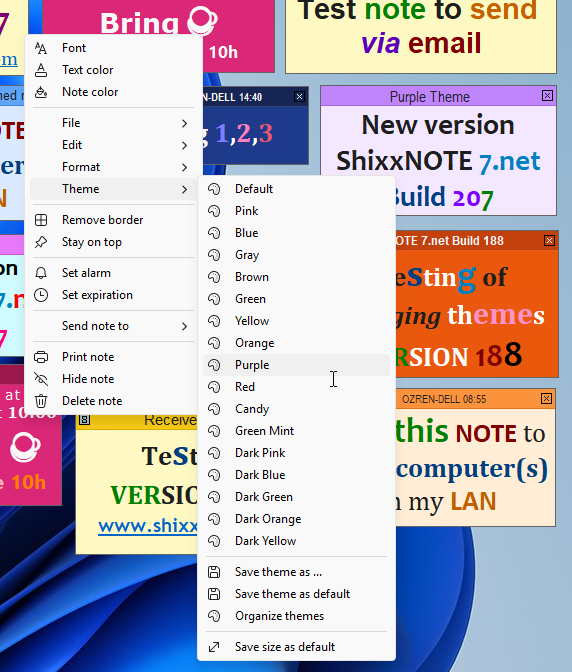
ShixxNOTE finds the other computers on your local network by itself and lists them in the Send note to other dialog. No central server, no accounts, no configuration, which is what makes it work as an offline LAN messenger →.
The search runs inside the program on a thread of its own and asks every address at the same moment, so a full sweep of the network takes about ten seconds and never holds up your notes.

👥 Recipient Groups for Teams 📷
Recipients you use often can be saved as a named group, and one group can mix computers on the local network with e-mail addresses. Pick the group, send once, and the note reaches everyone in it.
Group names appear directly in the note's Send note to menu, so a note goes out to a whole department in two clicks.
⚙️ The New Settings Window 📷
Every option the program has lives in one Settings window, and that window was rebuilt in the style of Windows 11. The pages are listed down the left side with large icons, the open page carries its title above it and a line underneath saying what it is for, and every Yes or No option is now a switch with On or Off written beside it instead of a pair of radio buttons.
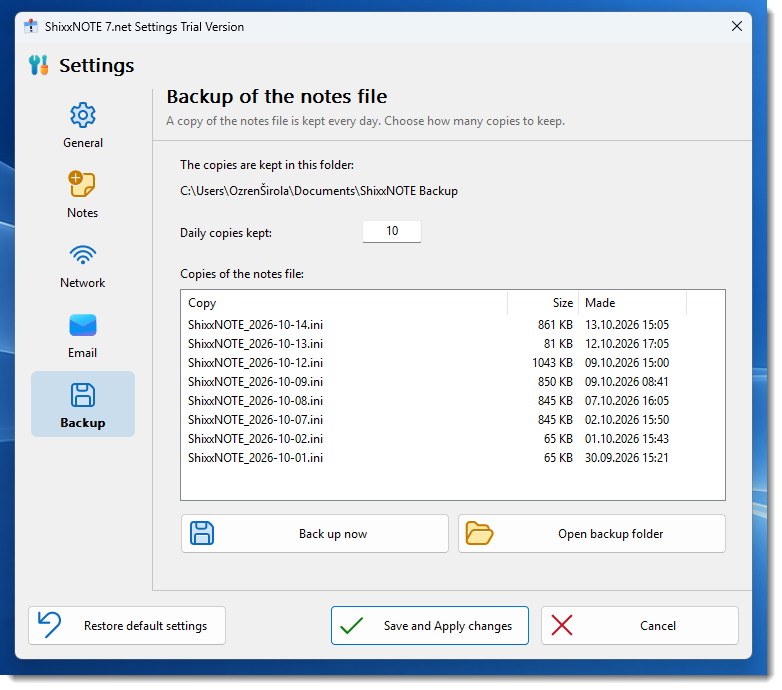
There are five pages. General, Note and Network hold what they always did, and two are new: Email, which gathers the e-mail settings and names the account in use, and Backup, which lists the daily copies of your notes. The sounds and the e-mail account now sit right on their own pages, and from here you also choose how round note corners are, the Note spacing, the gap used when notes are arranged, the display language with its flag and whether the ShixxNOTE icon stays on the taskbar.
A Restore default settings button puts every page back to what a newly installed program starts with, while leaving your notes, saved themes, recipients and your note password → exactly as they are. The whole list of changes is on the What's New page →.
🔔 You Know the Moment a Note Arrives 📷
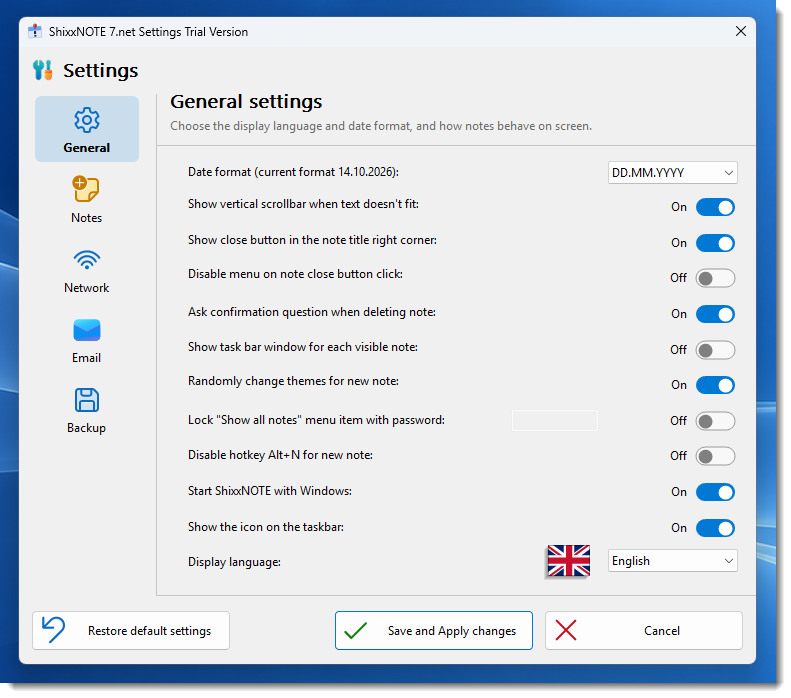
A note that lands on your desktop announces itself: a notification appears beside the tray icon, with a sound. It names the sender whole and in bold, fades away the way a hidden note does, and stays up for five seconds, so you notice a new note even when it arrives behind other windows, on Windows 10 and Windows 11 alike and also when the tray icon is hidden in the overflow area.
When you write a reply, the other computer shows under that note that you are typing, so a short exchange reads like a conversation. And a note sent to a computer that has nothing installed at all can be followed by an e-mail telling that person what is waiting for them and how to let plain Windows messages through, which is handy when a colleague is reachable but not yet set up. Both can be switched off in the network settings. This is everyday LAN messaging for an office →, with no cloud and no accounts.
💾 Daily Backups You Can See and Restore 📷
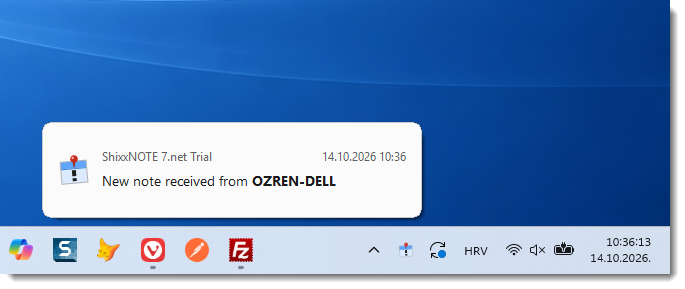
ShixxNOTE keeps a copy of your notes once a day, and those copies now live in your own Documents folder, in ShixxNOTE Backup. Copies made by an earlier build are moved there on the next start, so nothing is left behind.
A Backup page in Settings lists them, says how many days are kept, can make a copy right away and opens the folder for you, so getting your notes back is a matter of closing the program and copying one file over. Together with the Find in notes search and the error log the program keeps, it means a large pile of private notes → stays safe and findable.
🌐 Interface in Thirteen Languages 📷
ShixxNOTE speaks your language. A Display language option in the General settings switches the whole interface between thirteen languages, each shown with its own flag. The change takes effect at once, without a restart, and reaches every note already on your desktop, together with every dialog, menu, tool tip and message box.

English

German

Italian

French

Spanish

Portuguese

Dutch

Polish

Japanese

Korean

Turkish

Chinese

Croatian
The first time you start ShixxNOTE it picks the language of your Windows, if it is one of the thirteen, and a welcome note greets you in it. The note shows the program logo and five short tips: how to create a new note, how to change how it looks, how to set an alarm, how to send it to a colleague and how to find a note again. You can change the language at any time in the General settings.

What Users Are Saying
When you're spread over a couple of floors, it's great to have something that you know your workmate is going to see appear on their desktop. Means
you're more likely to get action than it sitting in amongst a bunch of internal emails.
You can send everyone on the network a note first thing in the morning to remind them of the day's special offers.
We also like the ability to send notes to other computers over our LAN. This generally works better than e-mail for phone messages in our office.
The best communicating software within an organization, working like a mail server. This is the most practical, useful desktop utility I've installed.
It should be installed as a standard!
Organization Profile
The communications, security and convenience factors ShixxNOTE 7.net offers make it ideally suited
for use in a corporate or office environment, whether you're a national retailer, a service-based company, an education provider, a government department
or any business which involves:
- many computers on-site
- offices spread throughout a building or in multiple locations
- frequent exchange of information between individuals
- high information flows and multitasking work practices
- dedicated workstations for staff members